
Install HAF Messenger on Android
Step-by-step guide to install the HAF Messenger app on an Android phone, turn on notifications, and allow the microphone for voice notes.
Use Google Chrome to install. Samsung Internet, Firefox, and other Android browsers may not show Install app, and mic / push are less reliable. After install, open HAF Messenger from the home-screen icon (not only a Chrome tab).
Device check#
In the app, open Install / How (or the menu). The guide shows a short Device check line with:
- Android version (from your phone)
- Browser (Chrome, Samsung Internet, Firefox, …)
- Whether you are in the installed app or a browser tab
- Whether Chrome’s Install prompt is available
Prefer Chrome on Android 10+. On older Android or Samsung Internet, open the same Messages link in Chrome, then Install.
If microphone or notifications stop working after an update, or a white bar sits under the composer, remove the old home-screen icon and install again from Chrome. Confirm the menu / install uses build haf-v4 (or newer).
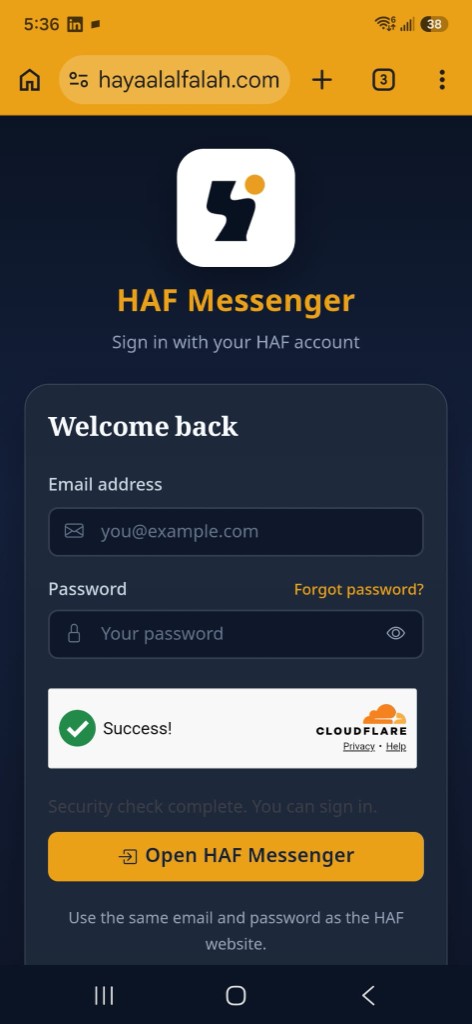
1. Sign in with Chrome#
- Open HAF Messenger in Chrome (scan the Connect phone QR from Messages if you have access).
- Sign in with your HAF account email and password.
- Complete the security check if shown, then tap Open HAF Messenger.
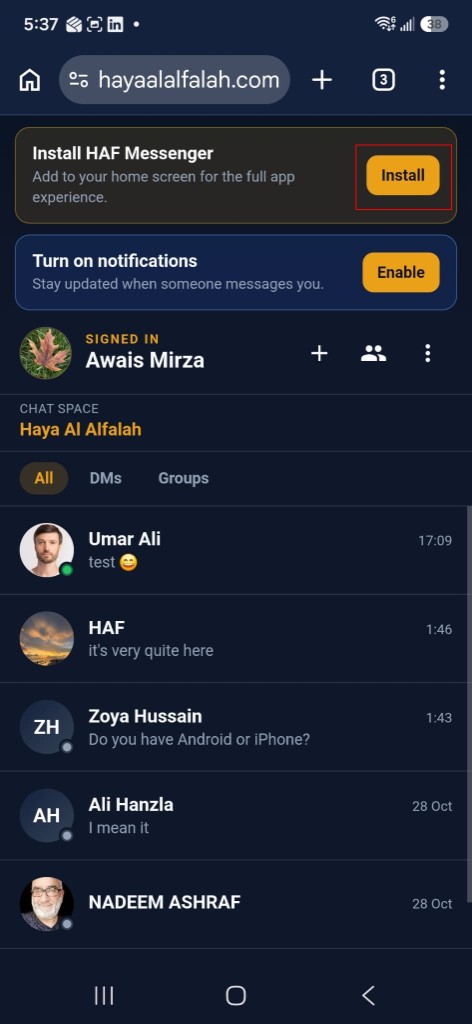
2. Tap Install#
At the top of the app, find Install HAF Messenger and tap Install.
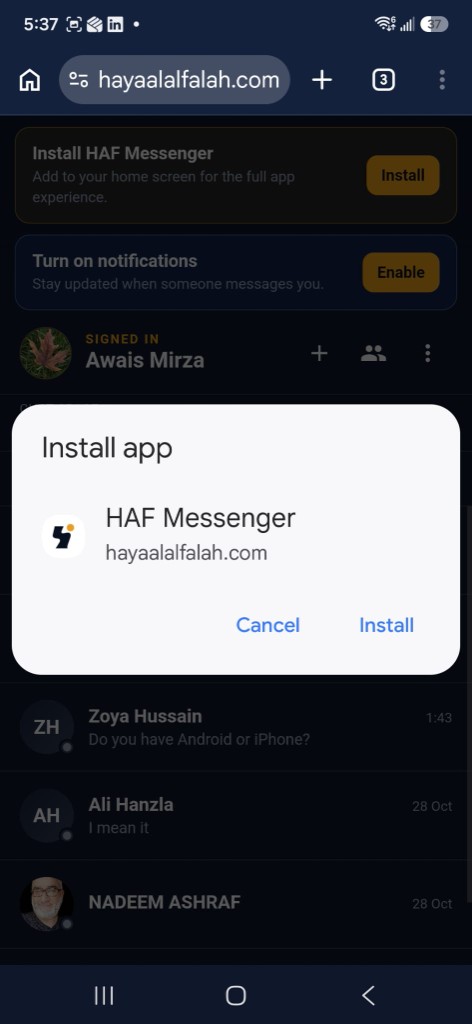
2b. Confirm Install app#
Chrome shows an Install app prompt for HAF Messenger. Tap Install.
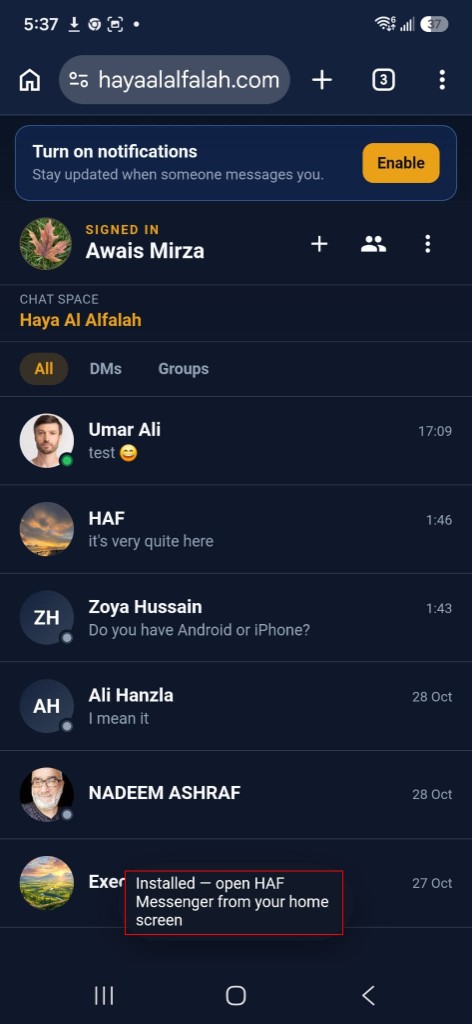
3. Open from the home screen#
After install, you should see a short message: Installed — open HAF Messenger from your home screen.
4. Turn on notifications#
- Tap Enable on the Turn on notifications banner.
- When Android asks Allow HAF Messenger to send you notifications?, tap Allow.
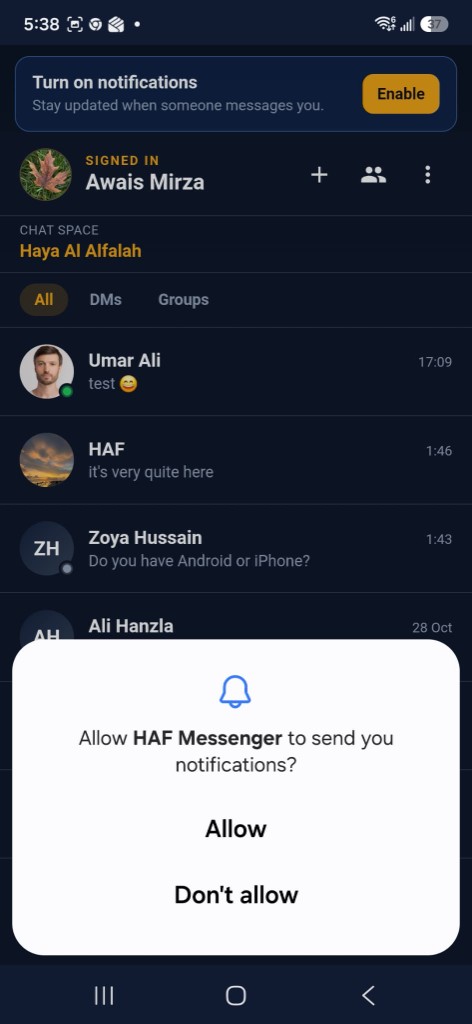
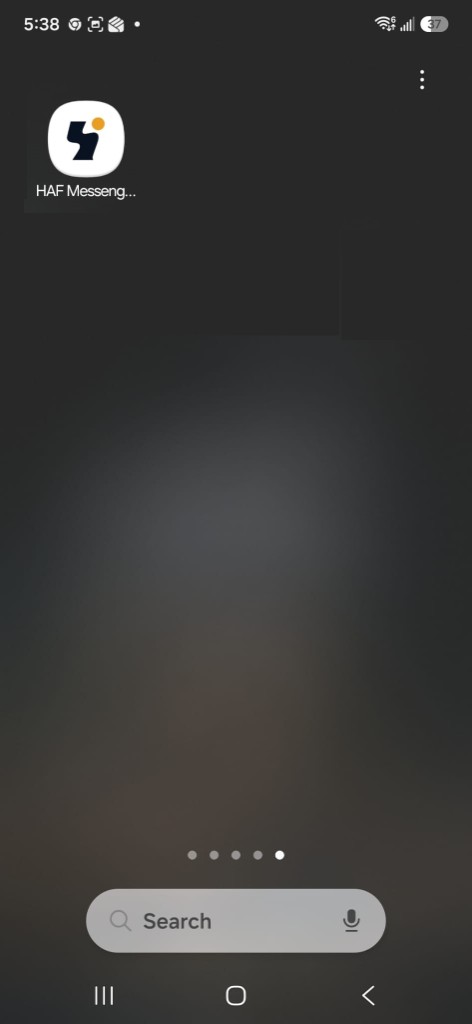
5. Find the home-screen icon#
Look for the HAF Messenger icon on your home screen (or app drawer / last home page).
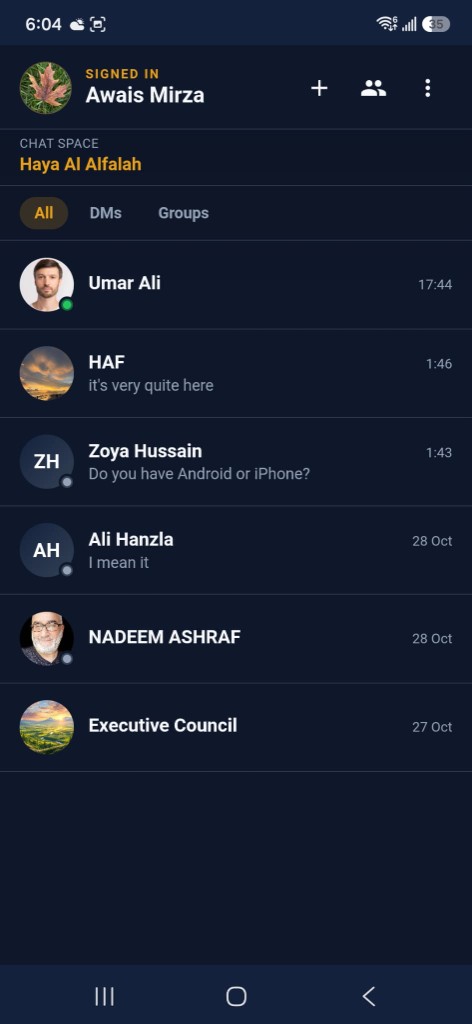
6. Open the installed app#
Open the icon. You should see your chats in the full app (no Chrome address bar).
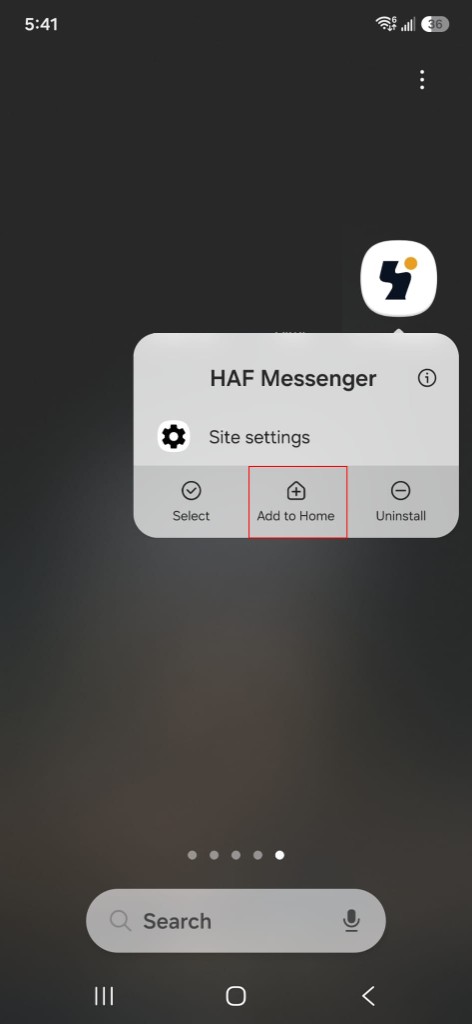
7. Add to Home (if needed)#
If the icon is missing, long-press the HAF Messenger shortcut or Chrome site control and choose Add to Home.
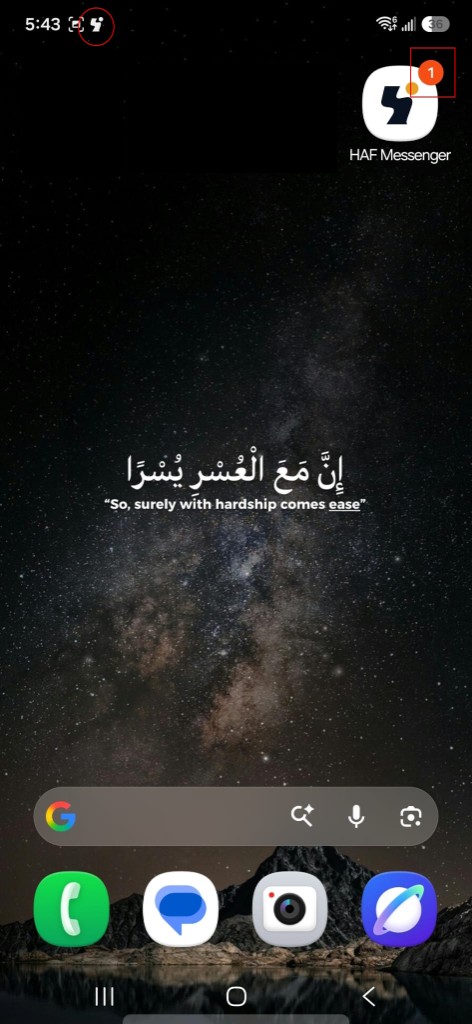
8. Notification badge#
When you have unread messages, the home-screen icon can show a badge count.
9. Lock-screen alerts#
New messages can also appear on the lock screen / notification shade.
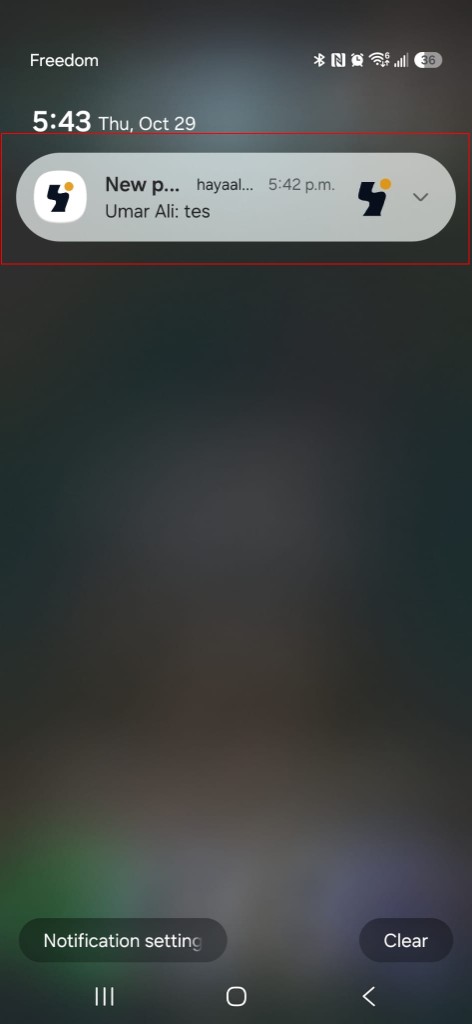
If alerts do not appear: open the app from the home-screen icon, then check Settings → Apps → HAF Messenger → Notifications (or Chrome site settings if you only use a tab).
Keep messages arriving when the phone is locked#
HAF Messenger is an installed web app (not a native WhatsApp-style process). New messages still reach you through phone notifications when notifications are allowed — you do not need the chat screen open.
For more reliable alerts and Online status on Android:
- Settings → Apps → HAF Messenger (or Chrome if you only use a tab) → Notifications → Allowed.
- Battery → set to Unrestricted (or turn off battery optimization for that app). Android “Optimized” mode can delay background wake-ups.
- Always open HAF Messenger from the home-screen icon, not a random Chrome tab.
Unlike WhatsApp, a PWA cannot force Android to keep a chat process running forever. Push notifications are the supported way messages keep coming while the screen is locked.
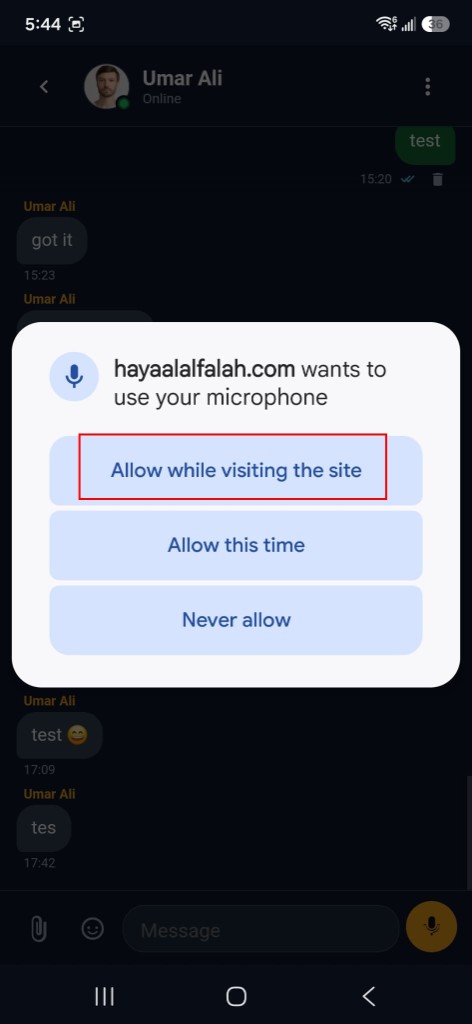
10. Allow the microphone (voice notes)#
To send a voice note, tap the yellow microphone button. When Chrome asks to use the microphone, choose Allow while visiting the site (or Allow).
Inbox tabs#
Use DMs, Groups, and Inbox at the top of the chat list. Switch chat space from the menu when you belong to partner organizations — each space shows its own DMs and Groups. Inbox shows platform notices (not chat messages — those stay in DMs/Groups and phone push). A small red dot on a tab means that list has unread items.
Offline use#
After you have opened chats while online, HAF Messenger keeps a short local copy of your conversation list and recently opened threads. With the phone offline you can still browse those saved chats and queue new messages; they send when you are back online. Creating new DMs or groups still needs a connection.