
Install HAF Messenger on iPhone
Step-by-step guide to install the HAF Messenger app on an iPhone, turn on notifications, and use the microphone for voice notes. You need an allowlisted HAF account and Safari (Chrome on iPhone cannot install Web Push the same way).
Use Safari. Install to the Home Screen, then always open HAF Messenger from that icon (not a Safari tab) for full screen and phone notifications. iOS 16.4+ is required for push.
1. Sign in#
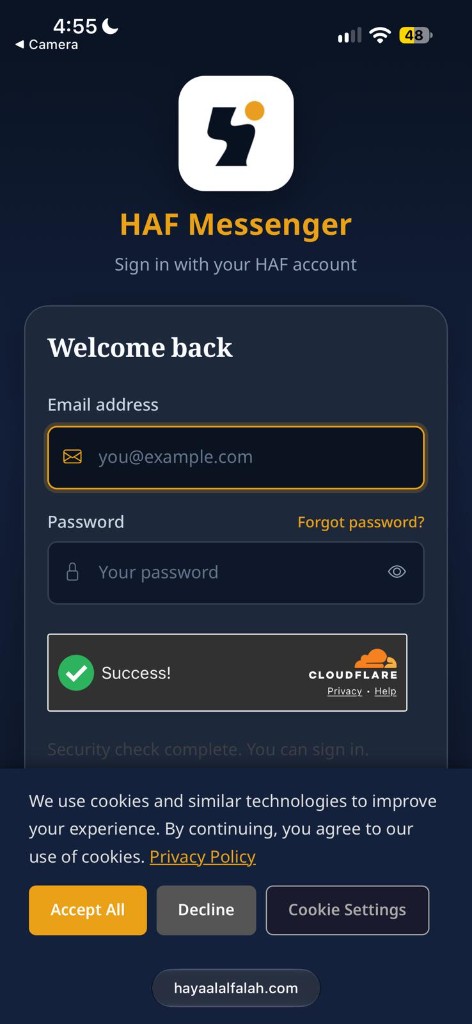
- Open HAF Messenger in Safari (scan the Connect phone QR from Messages if you have access).
- Sign in with your HAF account email and password.
- Complete the security check if shown. Accept cookies if the banner appears.
2. Find Add to Home Screen#
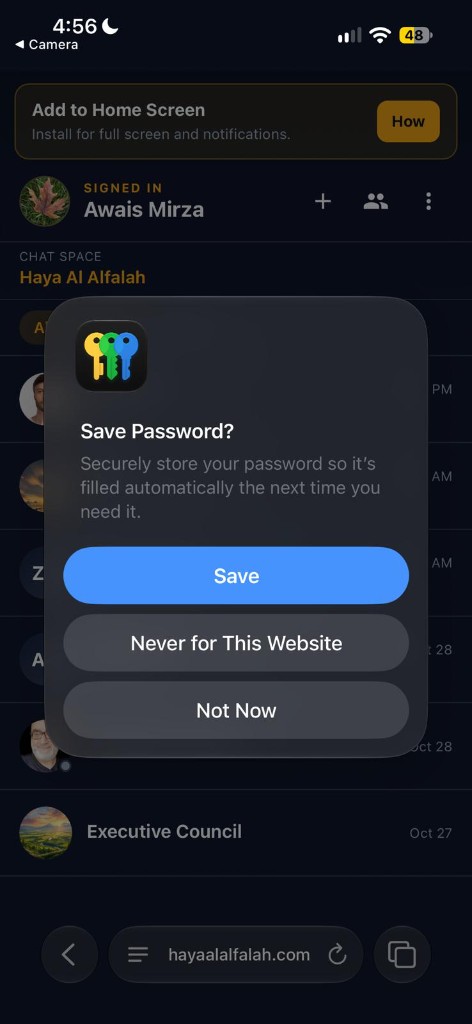
After sign-in you may see a Save Password? prompt from iPhone — choose Save, Not Now, or Never for This Website.
At the top of the app, look for the Add to Home Screen banner. Tap How for a short reminder of the install steps.
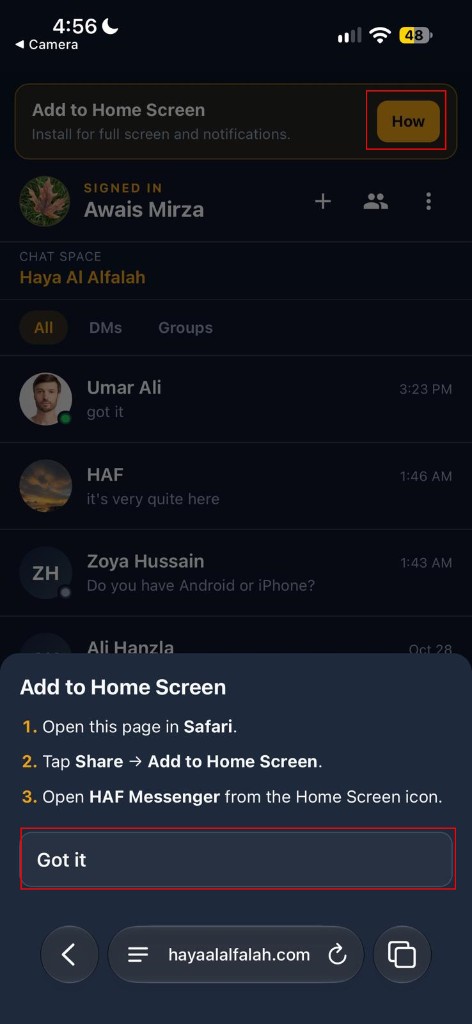
- Open this page in Safari.
- Tap Share → Add to Home Screen.
- Open HAF Messenger from the Home Screen icon.
- Tap Got it when you are ready to continue.
3. Open Share in Safari#
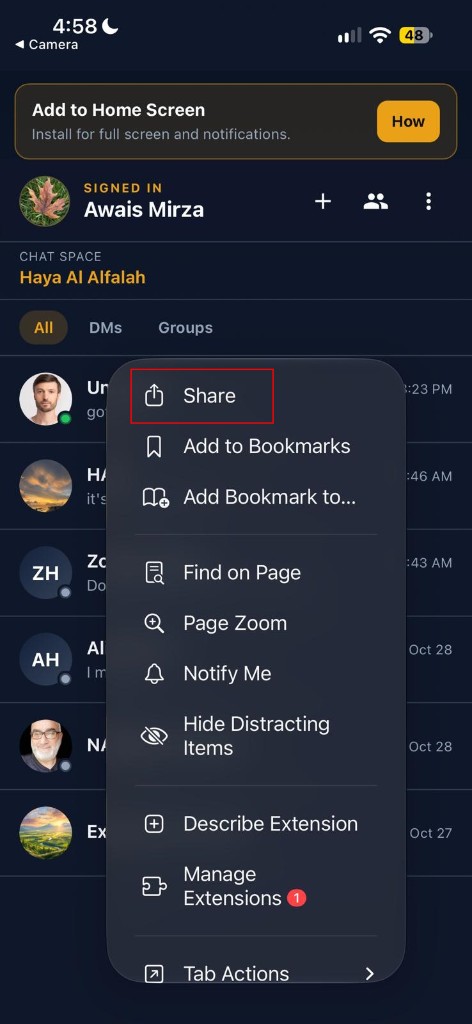
In Safari, open the page menu (often the aA / page options control) and tap Share.
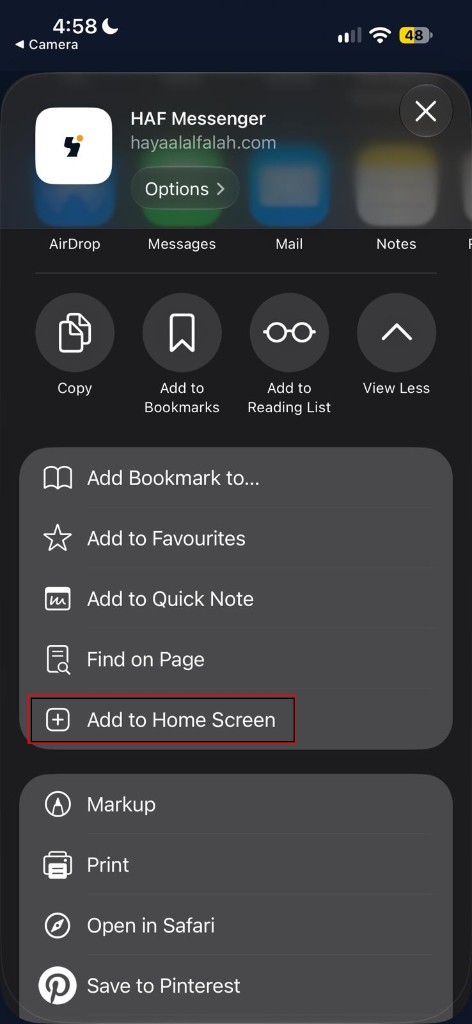
4. Choose Add to Home Screen#
On the Share sheet, scroll the list and tap Add to Home Screen.
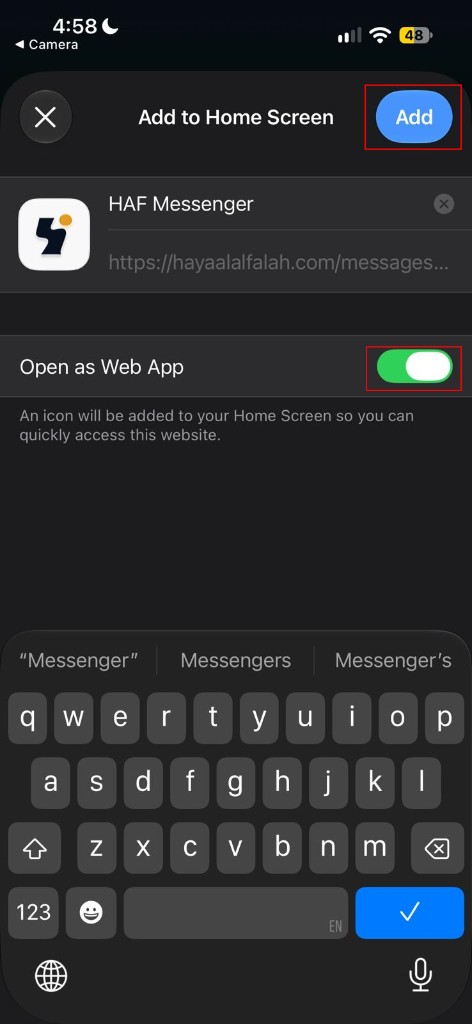
5. Confirm and Add#
- Keep the name HAF Messenger (or edit if you prefer).
- Turn Open as Web App On.
- Tap Add in the top right.
Open the new HAF Messenger icon from your Home Screen. Do not stay in a Safari browser tab for notifications.
6. Turn on notifications#
- In the app, tap Enable on the Turn on notifications banner.
- When iPhone asks, tap Allow.
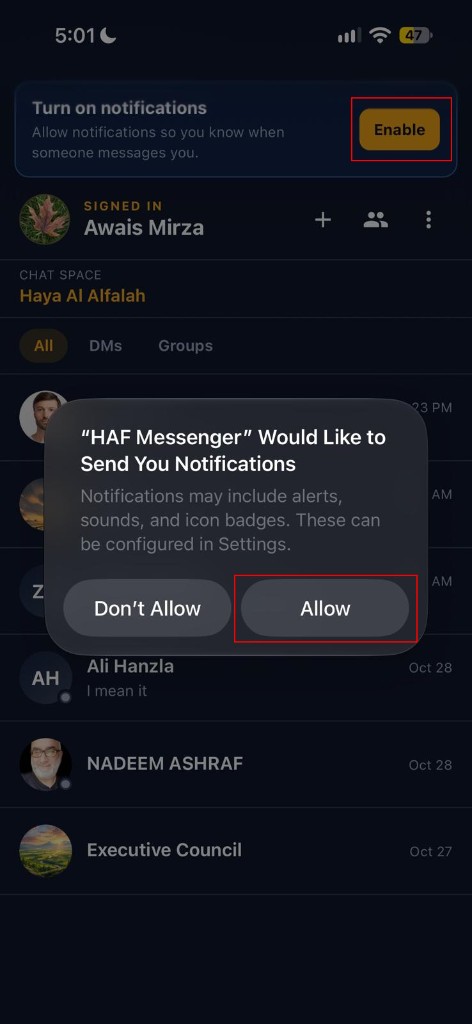
You can also open the app menu (⋯) → Notifications later to enable or disable phone and email alerts.
Check that it works#
When someone messages you, a HAF Messenger alert can appear on the Lock Screen.
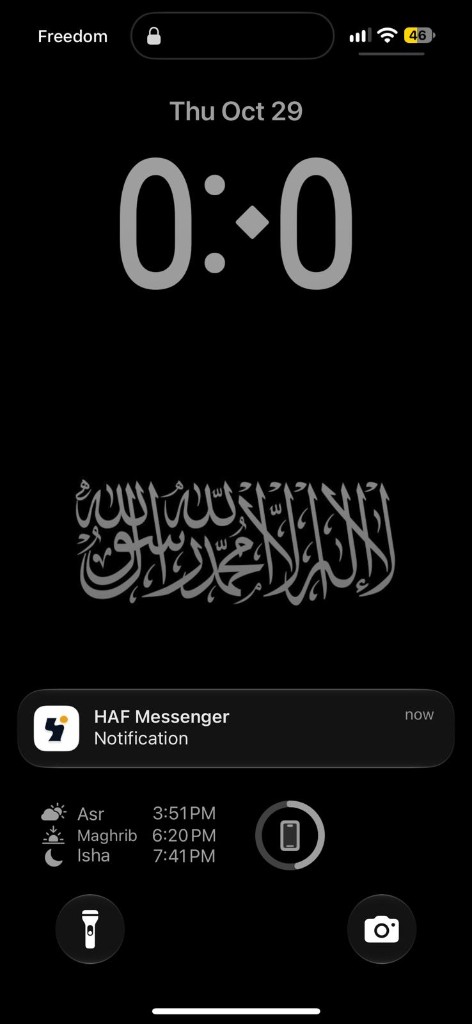
If alerts do not appear: open the app from the Home Screen icon, confirm iOS is 16.4+, and check Settings → Notifications → HAF Messenger (allow Alerts).
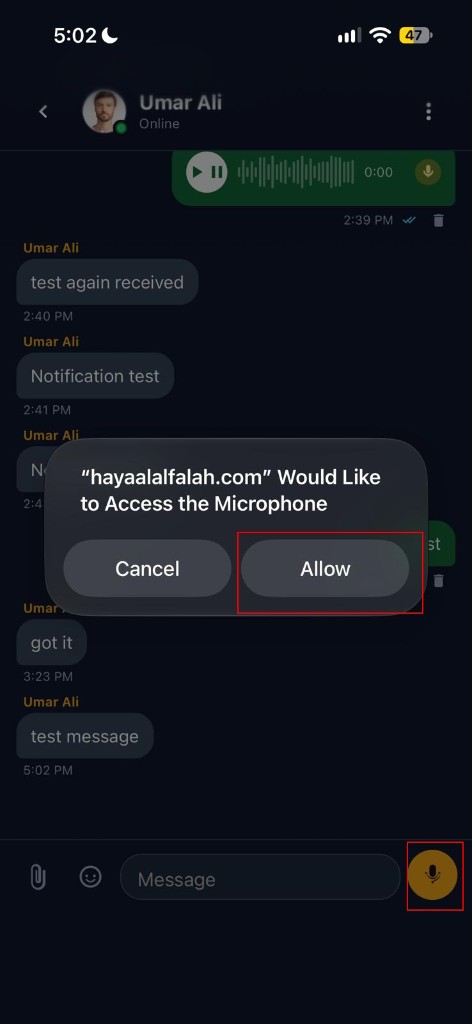
7. Allow the microphone (voice notes)#
To send a voice note, tap the yellow microphone button. When iPhone asks for access, tap Allow.
Related#
- Install HAF Messenger on Android
- Messages — website inbox, groups, and early-access app overview
- Account & profile — email notification preferences
- Support, FAQ & tickets